Setting Up a Delay for All Email Messages in Outlook
This guide will walk you through the steps to set up a delay for all outgoing emails in Microsoft Outlook. By following these steps, you can ensure that your emails are held in the Outbox for a specified period before being sent, giving you a chance to make any last-minute changes.
Disclaimer
Please be advised that we do not provide official technical support for this setup. It is offered as a courtesy, and we are unable to assist with any issues, troubleshooting, or complications that may arise from its use.
Step 1: Open Outlook and Navigate to Rules
- Open Microsoft Outlook.
- Go to the File tab.
-
Click on Manage Rules & Alerts.

Step 2: Create a New Rule
- In the Rules and Alerts window, click on New Rule.
-
In the Rules Wizard, select Apply rule on messages I send under the Start from a blank rule section.
 3. Click Next.
Step 3: Set Conditions
- If you want the delay to apply to all emails, do not select any conditions and click Next.
-
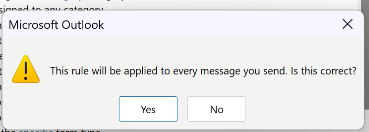
You will be prompted with a message saying, This rule will be applied to every message you send. Click Yes.
Step 4: Set the Delay
- In the next window, select the option defer delivery by a number of minutes.
- In the lower part of the window, click on a number of to specify the delay time.
- Enter the number of minutes you want to delay the emails (e.g., 5 minutes).
-
Click Next.

Step 5: Set Exceptions (Optional)
- If there are exceptions where you do not want the delay to apply (e.g., to a specific recipient), you can specify them in this step.
- Click Next when finished.
Step 6: Name and Finish the Rule
- Give your rule a name, such as Delay All Email Rule.
- Make sure the option Turn on this rule is checked.
-
Click Finish to apply the rule.

Step 7: Test the Rule
- Compose a new email and send it.
- Check the Outbox folder to ensure the email is delayed as per the rule.
Conclusion
You have successfully set up a delay for all outgoing emails in Outlook. This feature can help you avoid sending emails prematurely and give you additional time to review your messages before they are sent.